
Group Policy Configuration & Testing Guide
Create and link Group Policy Objects (GPOs) for computer baselines, user preferences, and drive mappings. Learn to test policy application and troubleshoot common issues.
This guide walks through creating, linking, and testing Group Policy Objects (GPOs) in your Active Directory domain. You'll learn how to configure security baselines, user preferences, and drive mappings while troubleshooting common issues.
Step 1: Create and Link Computer Baseline GPO
We'll create a GPO targeted at workstations in a specific Organizational Unit (OU).
Target: Workstations > NYC (or parent Workstations for domain-wide application)
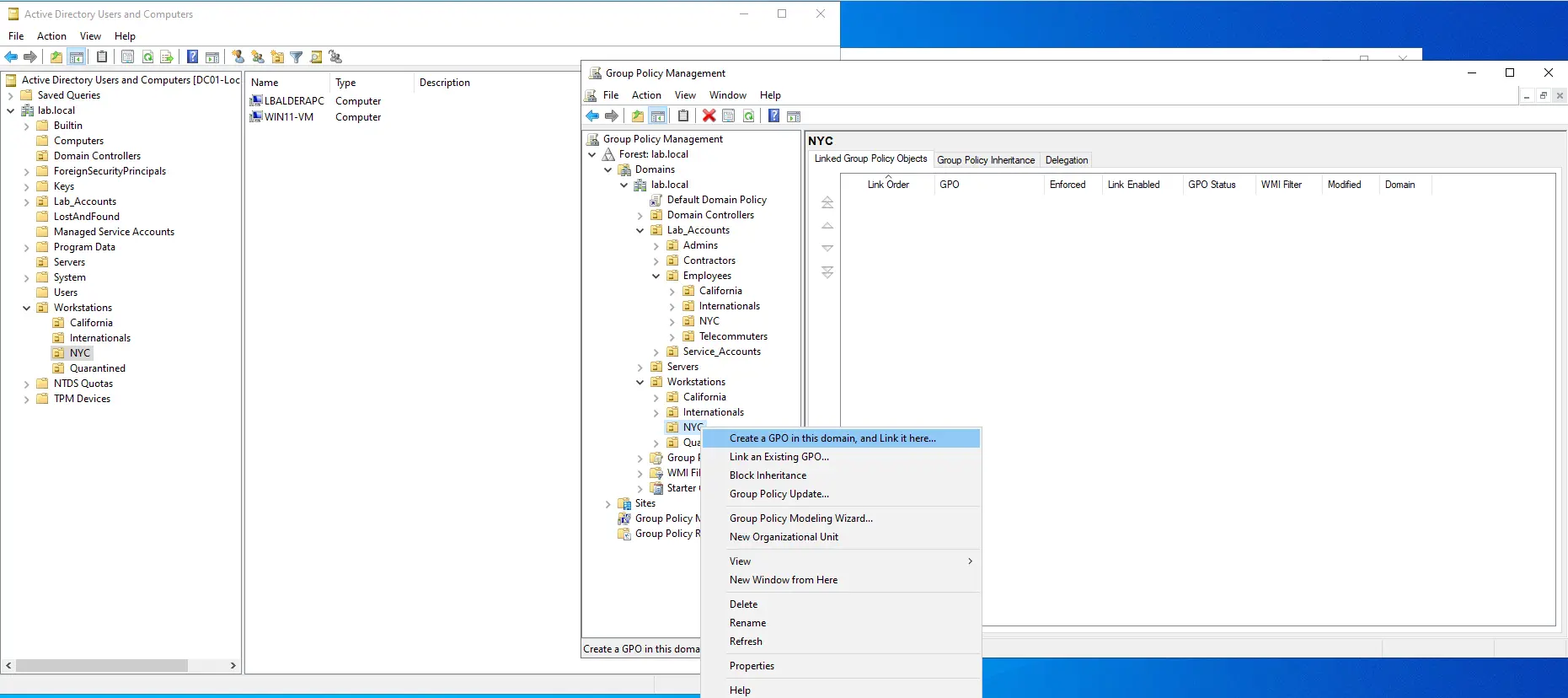
- Open Group Policy Management.
- Expand
lab.local > Workstationsand right-click NYC. - Select Create a GPO in this domain, and Link it here....
- Name it
GPO_NYC_Workstations_Baseline.
Step 2: Configure Interactive Logon Banner & Power Settings
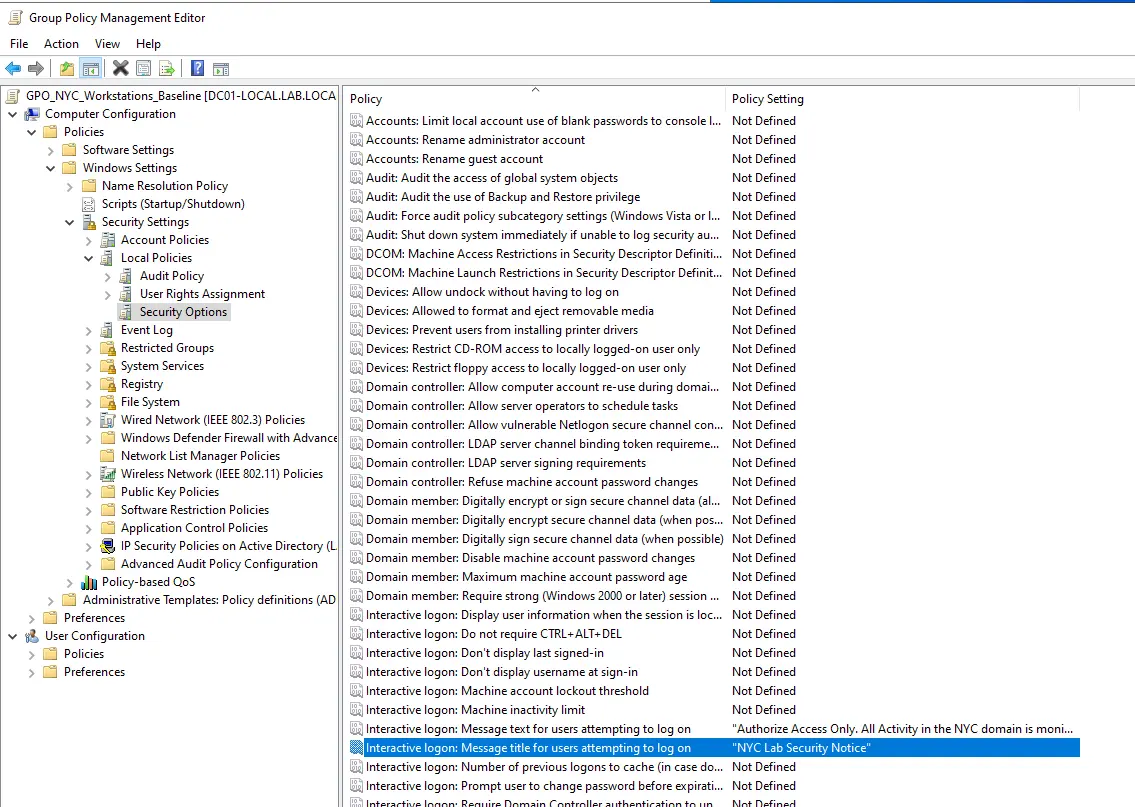
- Right-click
GPO_NYC_Workstations_Baselineand click Edit. - Navigate to:
Computer Configuration > Policies > Windows Settings > Security Settings > Local Policies > Security Options - Configure the banner:
- Interactive logon: Message text for users attempting to log on → "Authorized Access Only. All activity in the NYC domain is monitored."
- Interactive logon: Message title for users attempting to log on → "NYC Lab Security Notice"
- Navigate to:
Computer Configuration > Policies > Administrative Templates > System > Power Management - Enable Turn off hybrid sleep to prevent lab VMs from entering deep sleep during testing.
Step 3: Link User Policy for NYC Employees
Create a user policy that maps network drives and applies restrictions.
Target: Lab_Accounts > Employees > NYC
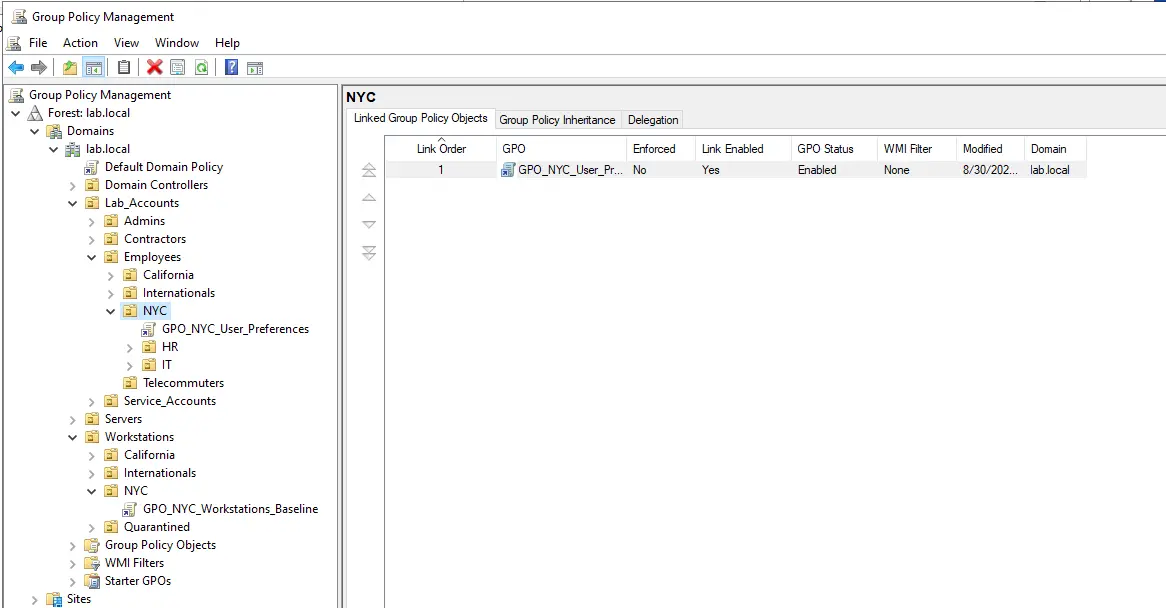
- In Group Policy Management, navigate to
Lab_Accounts > Employees > NYC. - Right-click NYC → Create a GPO in this domain, and Link it here....
- Name it
GPO_NYC_User_Preferences.
Configure Drive Mapping and Restrictions
- Right-click
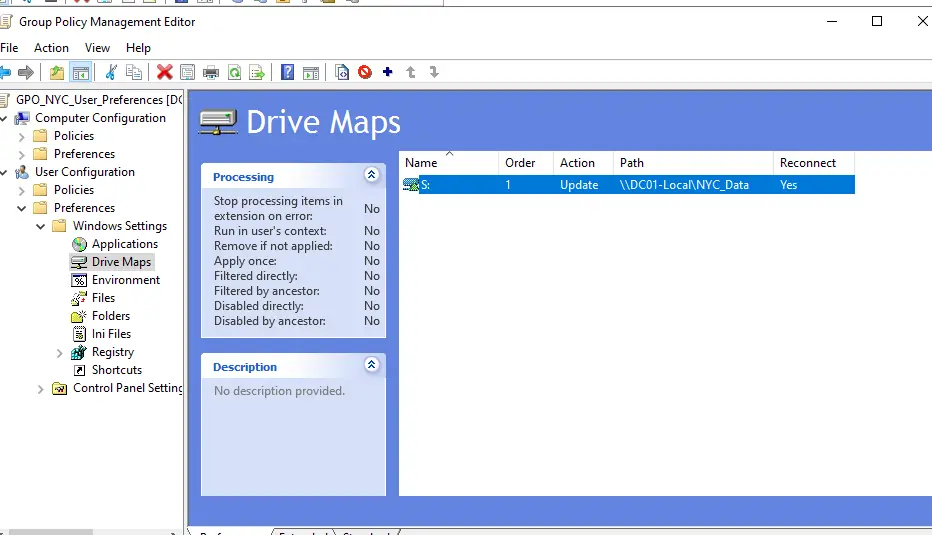
GPO_NYC_User_Preferencesand Edit. - Drive Mapping: Navigate to:
User Configuration > Preferences > Windows Settings > Drive Maps- Map
S:to\\lab.local\Shares\NYC_Data
- Map
- Control Panel Restriction: Navigate to:
User Configuration > Policies > Administrative Templates > Control Panel- Set Prohibit access to Control Panel and PC settings to Enabled (or Enabled with specific access if testing standard user lockdowns)
Step 4: Verify Inheritance & Apply to Client
GPOs process from Top-Down (Site → Domain → Parent OU → Child OU). Linking at Workstations > NYC ensures only workstations in that container receive these rules.
Test Policy Application on Client
- Log onto
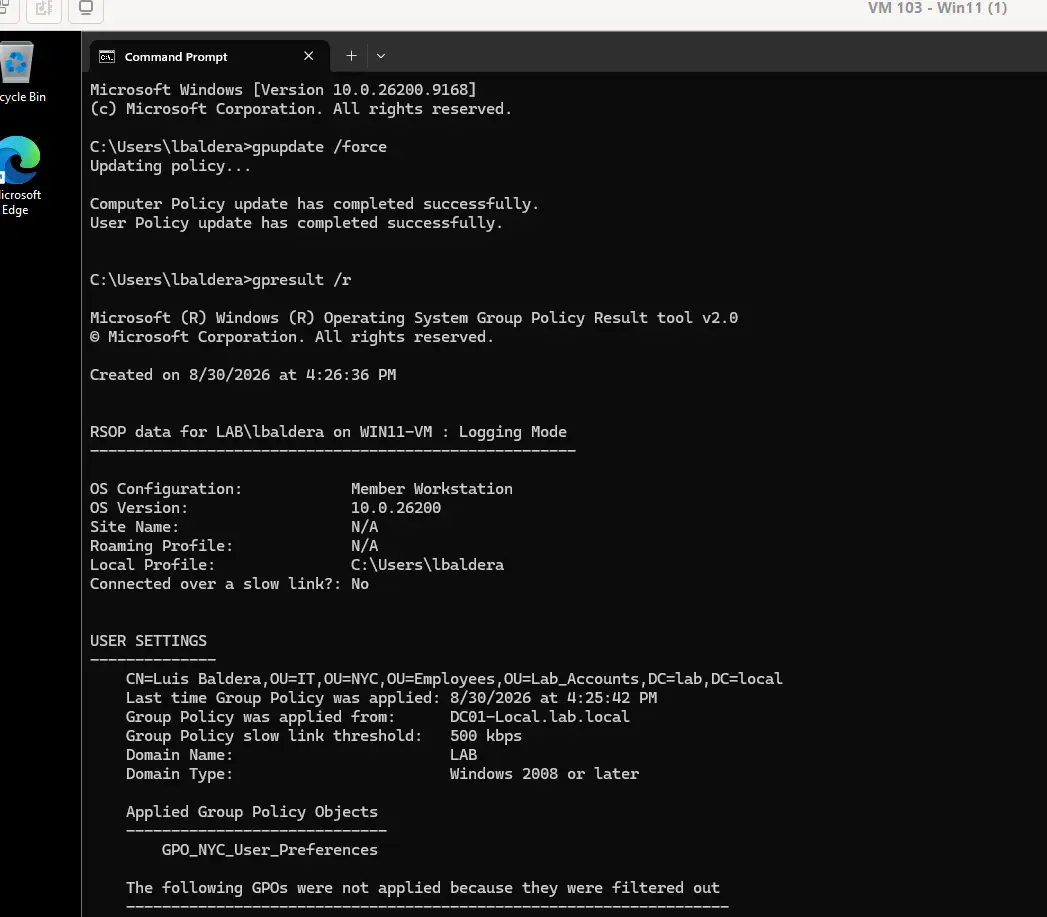
WIN11-VMas a user in the NYC user OU. - Open Command Prompt and run:
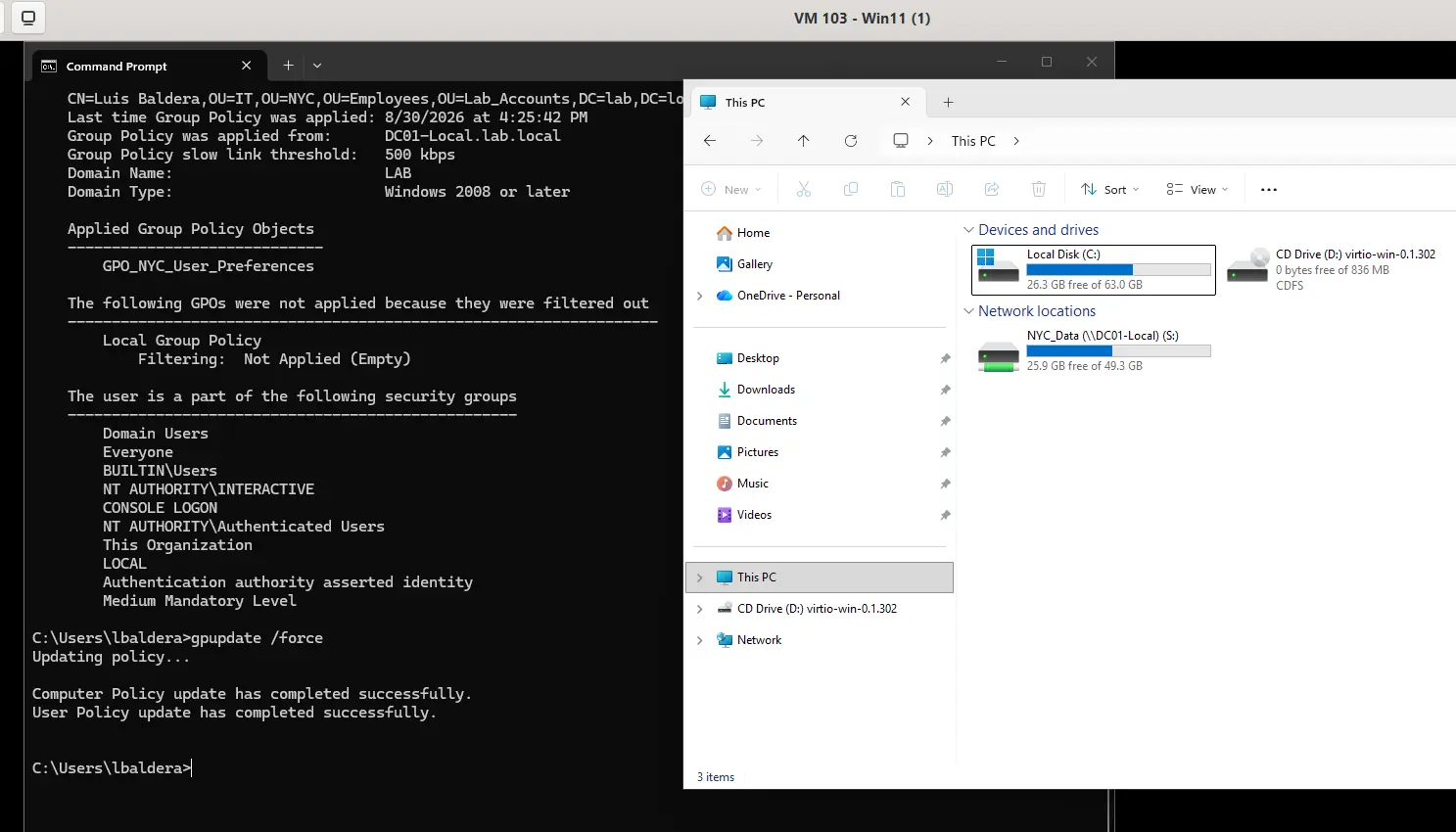
gpupdate /force gpresult /r - Review the output:
- Under Computer Settings:
GPO_NYC_Workstations_Baselineshould show as Applied - Under User Settings:
GPO_NYC_User_Preferencesshould show as Applied
- Under Computer Settings:
Troubleshooting: Drive Mapping Not Loading
After running gpupdate /force, the mapped drive may not appear. Here's the common fix:
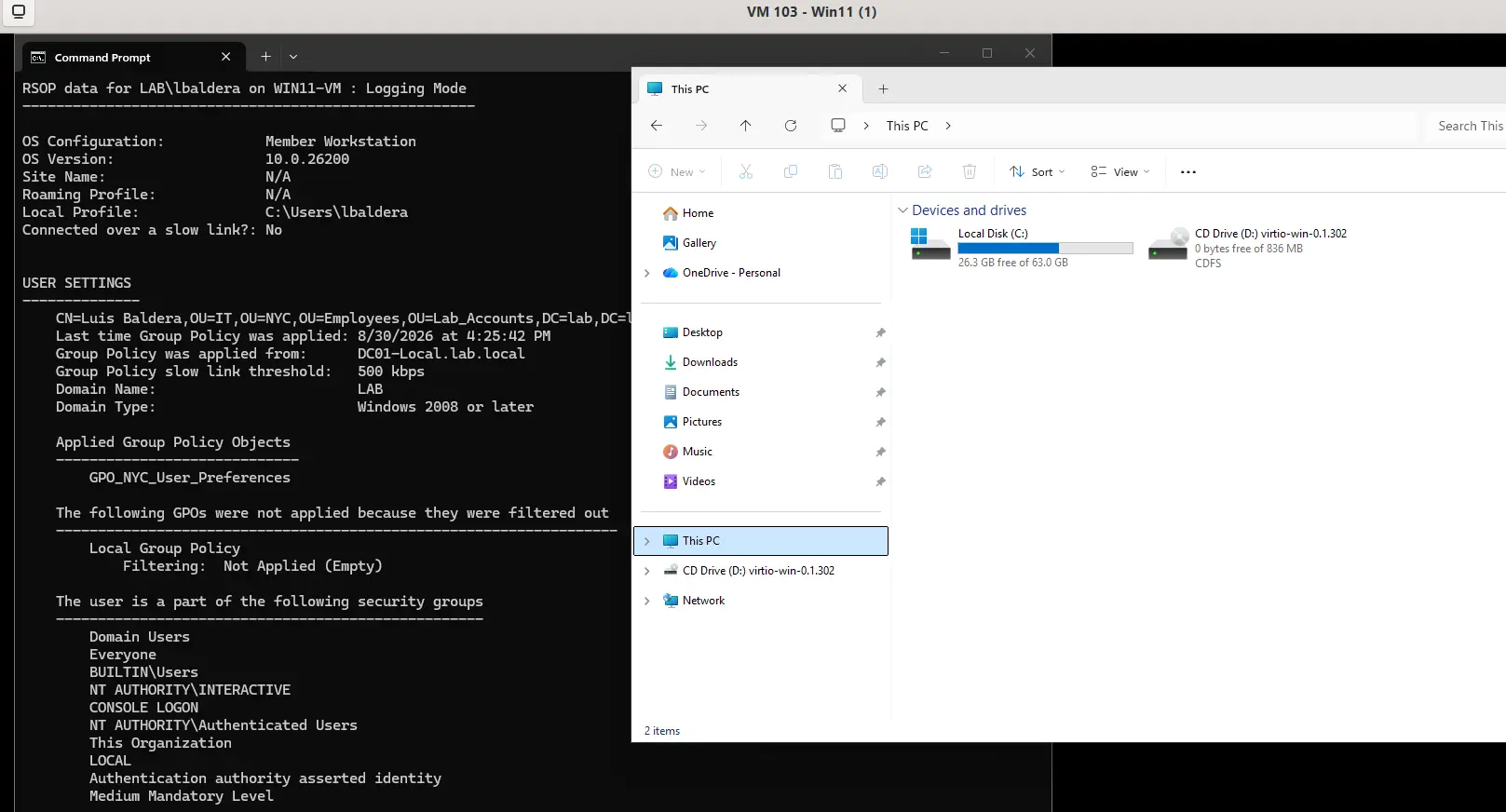
Root Cause: Shared Folder Doesn't Exist
The GPO references a share path that hasn't been created yet on the Domain Controller.
Solution: Create the Shared Folder
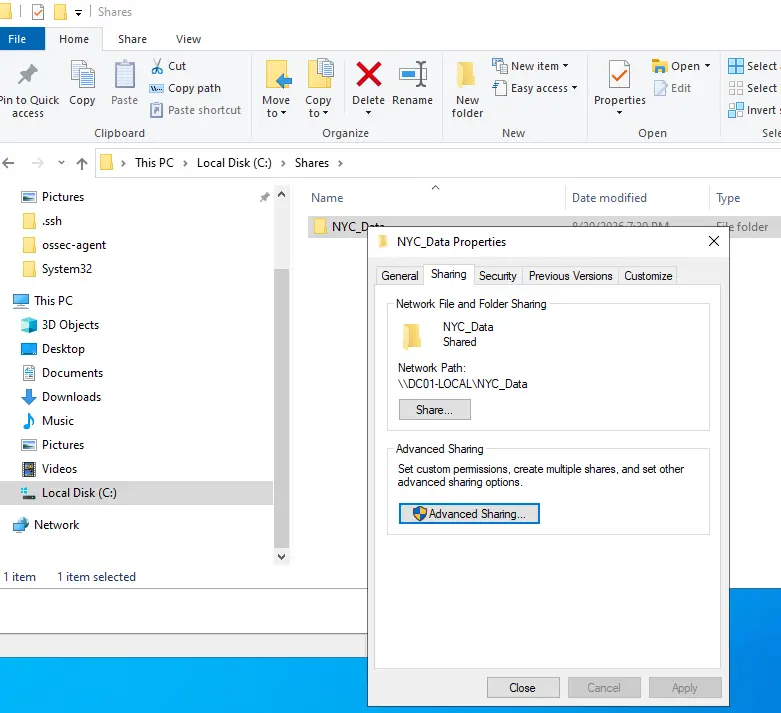
- On DC01, create the folder:
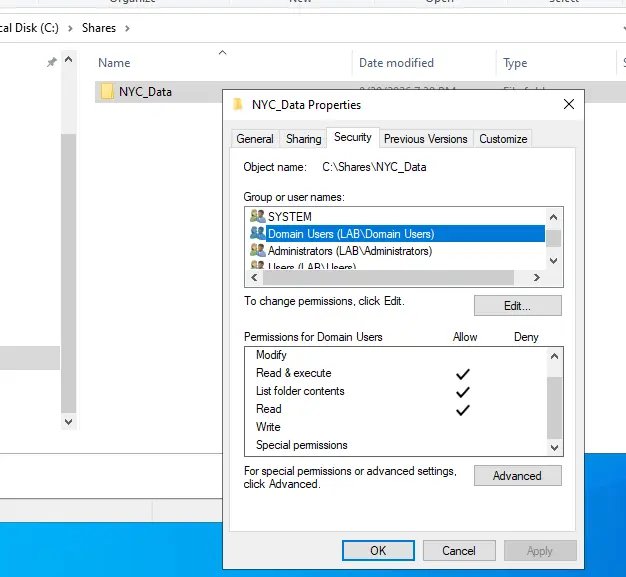
C:\Shares\NYC_Data - Right-click the folder → Properties → Sharing tab.
- Click Share... and add Domain Users with at least Read permissions.
Update the GPO
Once the share exists, update the GPO to point to the correct path:
Re-test on Client
- Run
gpupdate /forceagain on the client. - Open File Explorer.
- The NYC_Data (S:) drive should now appear.
Key Takeaways
- GPO Inheritance: Policies flow down the OU hierarchy. Child OUs inherit parent policies unless explicitly blocked.
- GPUPDATE: Always run
gpupdate /forceafter modifying GPOs on the client to immediately refresh policy application. - GPRESULT: Use
gpresult /rto verify which GPOs are actually applied to a specific user/computer. - Shared Resources: Ensure network shares, UNC paths, and permissions exist before referencing them in GPOs.
- Testing: Test GPOs on client machines before applying domain-wide to catch configuration issues early.
Use the Group Policy Management Console search feature to quickly find specific policies. You can also export GPO configurations to XML for documentation and audit purposes.