
Wazuh-in-Proxmox: Deploying SIEM in Your Homelab
Learn how to deploy Wazuh, a comprehensive SIEM and threat detection platform, as a virtual machine on Proxmox VE. This guide covers installation, configuration, and integration with other homelab services.
Prerequisites
Before you begin, ensure the following:
- Proxmox Environment: A running Proxmox VE cluster or standalone node with sufficient resources
- Ubuntu VM: An Ubuntu Server VM (20.04 LTS or later) with internet access
- Resources: Minimum 4 vCPUs, 8GB RAM, and 60GB storage (16GB+ RAM recommended for optimal performance)
- Network: VM must be able to reach the internet and communicate with other lab endpoints
System Update & Dependencies
Start by updating your system and installing necessary tools:
sudo apt update && sudo apt upgrade -y
sudo apt install curl unzip -y
Installation Steps
1. Download the Installation Assistant
Run the following command to download the official Wazuh installation script:
curl -sO https://packages.wazuh.com/4.14/wazuh-install.sh2. Run the Assisted Installation
The -a flag runs the "all-in-one" installation, which sets up the Wazuh Indexer, the Wazuh Server (Manager), and the Wazuh Dashboard automatically:
sudo bash ./wazuh-install.sh -aNote: This process usually takes 10–20 minutes to complete. Be patient and let it finish fully.
3. Retrieve Your Credentials
Once the installation finishes, the script will output the results, including your access credentials. If you need to retrieve them later, extract them from the installation files:
sudo tar -O -xvf wazuh-install-files.tar wazuh-install-files/wazuh-passwords.txt4. Access the Dashboard
Once installation completes:
- Open your web browser and navigate to
https://<YOUR_VM_IP_ADDRESS> - Log in with the username admin and the password provided in the installation output
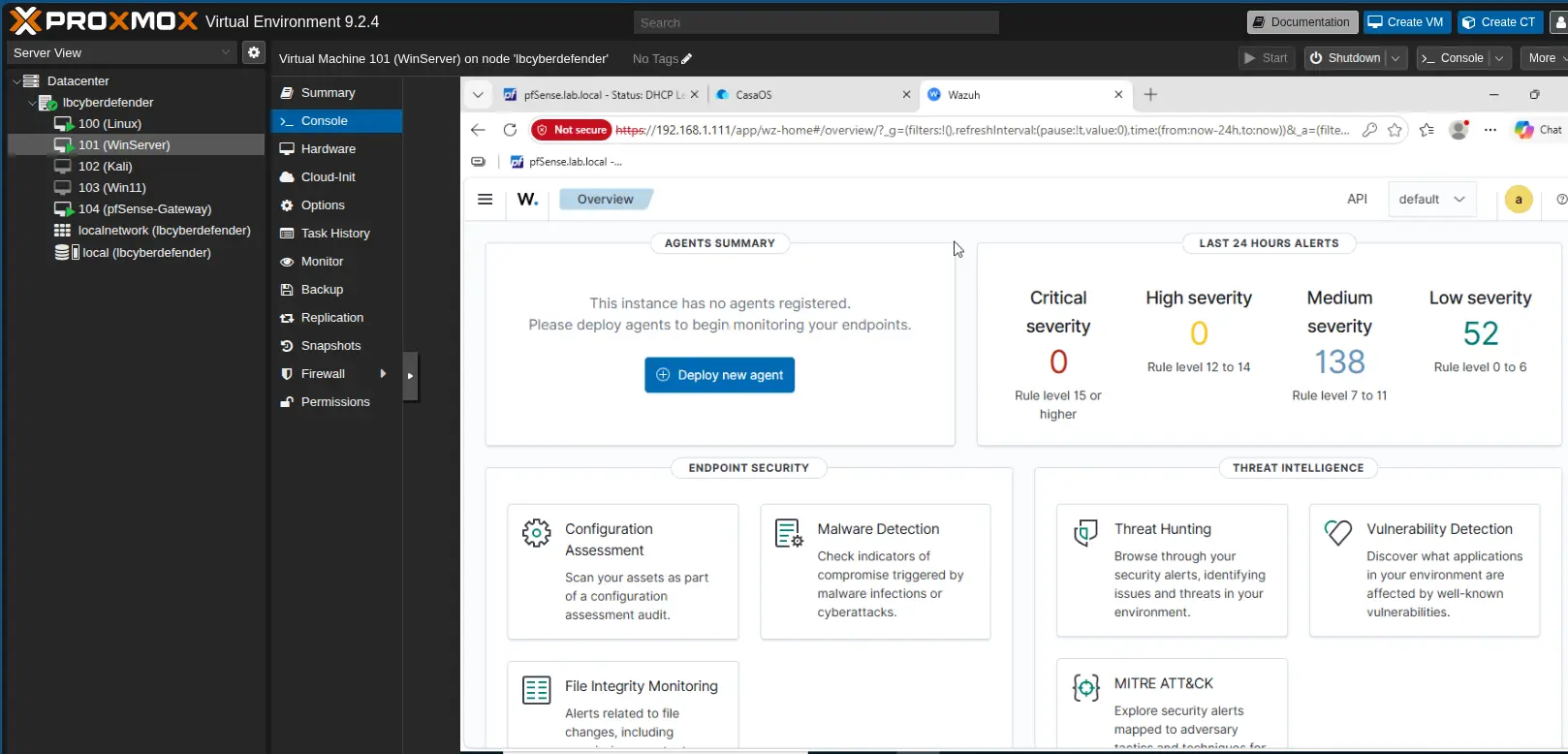
Wazuh GUI running after initial installation
Pro-Tips for Your Environment
- Monitoring Logs: If you run into issues during install, check logs at
/var/log/wazuh-install.log - Resource Management: Wazuh can be memory-intensive. If your VM crashes, ensure you've allocated sufficient RAM (8GB+ recommended)
- Next Steps: Once the dashboard is up, you can start protecting endpoints by deploying the Wazuh Agent on them
Port Conflicts: Managing CasaOS & Other Services
If you have other services running on your Ubuntu server (like CasaOS), they may conflict with Wazuh's ports. Here's how to resolve port conflicts:
How to Change the CasaOS Port
CasaOS typically runs its web interface on port 80/443. You can change this by modifying the configuration files:
1. Stop the CasaOS Web Service
Stop the service before changing the configuration:
sudo systemctl stop casaos-gateway2. Edit the Configuration File
The configuration file is typically located at /etc/casaos/gateway.conf. Open it with a text editor:
sudo nano /etc/casaos/gateway.confLook for the port or listen parameter and change it from 80 (or 443) to a custom port, such as 8080.
3. Restart the Service
Once saved, restart the gateway service to apply the change:
sudo systemctl start casaos-gateway4. Access Your Services
- Wazuh: Will remain on the standard port (443)
- CasaOS: Will be accessible at
http://<YOUR_VM_IP_ADDRESS>:8080
Alternative Configuration Paths
If the first path doesn't work, try these alternatives:
- CasaOS Config File:
/etc/casaos/casaos.conf- Command:
sudo nano /etc/casaos/casaos.conf - Look for a line specifying
PORT=80and change it to your desired port (e.g.,PORT=8080)
- Command:
- Gateway-Specific File:
/etc/casaos/gateway/gateway.ini- Command:
sudo nano /etc/casaos/gateway/gateway.ini - Find the line
port = 80and change the number to your new port
- Command:
After Modifying the Configuration
Once you've saved the file (Press Ctrl + X, then Y, then Enter), restart CasaOS:
sudo systemctl restart casaosVerify the new port is active:
sudo netstat -tulnp | grep casaos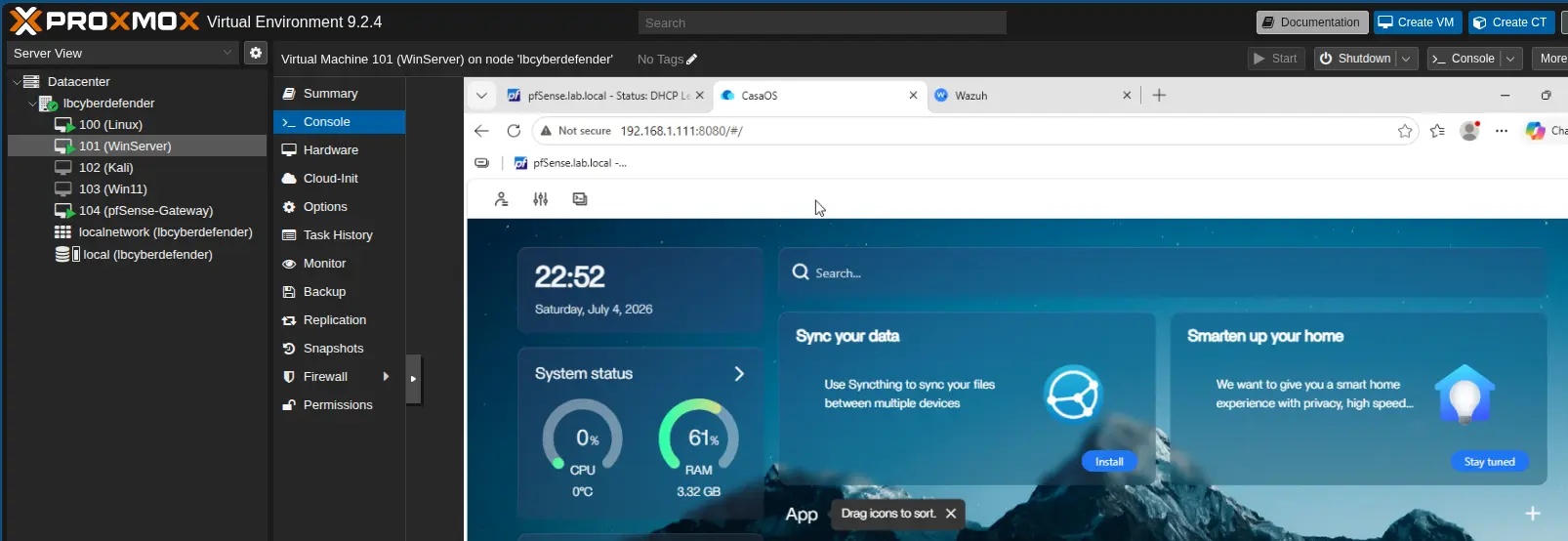
CasaOS successfully running on custom port (will be removed to dedicate resources to Wazuh)
Next Steps
- Deploy Wazuh Agents: Install the Wazuh agent on your domain controller, workstations, and other endpoints
- Configure Log Sources: Point Wazuh to relevant log sources (Windows Event Logs, Sysmon, application logs)
- Create Detection Rules: Build custom detection rules tailored to your homelab environment
- Monitor & Alert: Set up automated alerts for suspicious activity and anomalies