Enabling Copy & Paste in Proxmox
By default, Proxmox uses noVNC which lacks clipboard functionality. Learn three methods to enable copy and paste in your virtual machines.
By default, Proxmox uses noVNC, which does not support clipboard functionality. Here are three ways to enable copy and paste in your virtual machines.
Method 1: Using VNC Clipboard
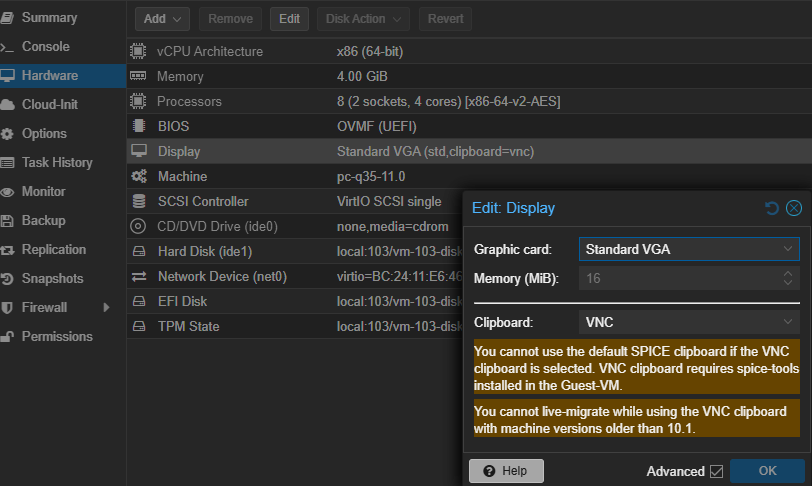
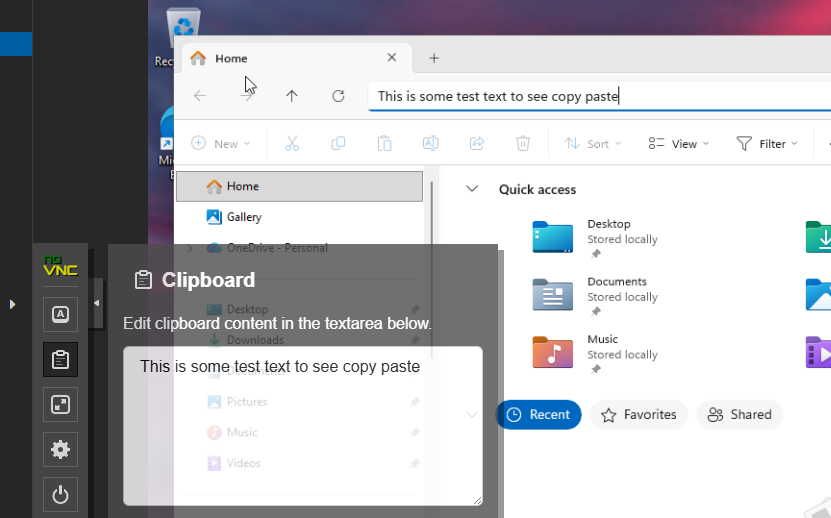
This method leverages the native VNC clipboard feature. It requires enabling the clipboard setting in your VM's display configuration.
- In Proxmox, open your VM and navigate to Hardware → Display.
- Enable the clipboard option.
- If using a Windows VM, insert the VirtIO driver file.
- Reboot the VM.
Method 2: Using xterm.js Serial Console
xterm.js provides a web-based terminal with full clipboard support. This method is ideal for Linux VMs and offers superior clipboard integration.
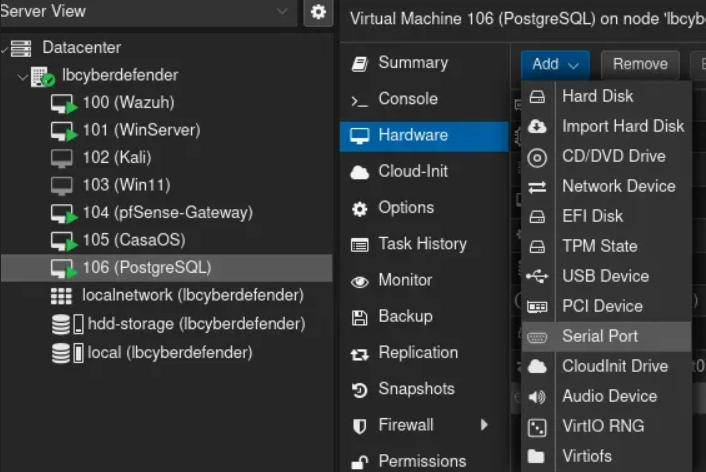
- In Proxmox, navigate to your VM's Hardware tab.
- Click Add → Serial Port and set it to port 0.
- SSH into the VM and edit the GRUB bootloader configuration:
sudo nano /etc/default/grubAdd serial console parameters to the GRUB_CMDLINE_LINUX_DEFAULT line:
GRUB_CMDLINE_LINUX_DEFAULT="quiet console=tty0 console=ttyS0,115200"Update GRUB and reboot:
sudo update-grub
sudo reboot
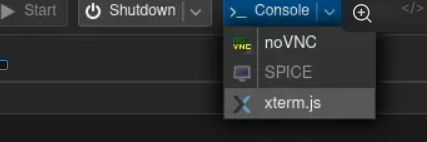
Once rebooted, open the Proxmox console, click the dropdown menu, and select xterm.js.
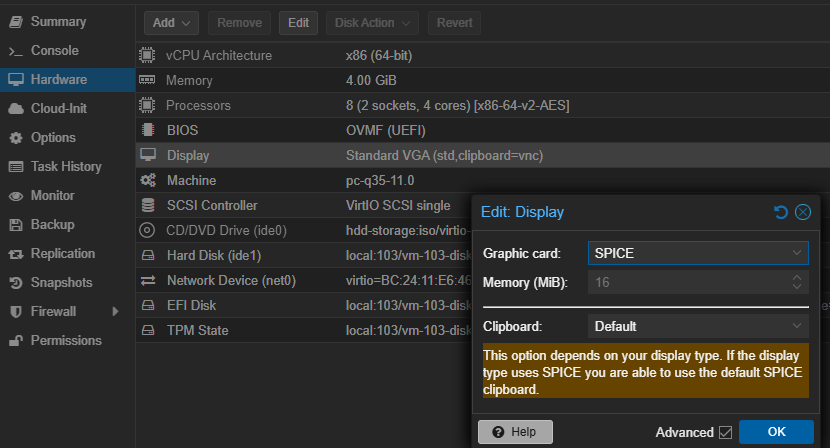
Method 3: Using SPICE Display Protocol
SPICE (Simple Protocol for Independent Computing Environments) is a remote display protocol with excellent clipboard support. This method requires a dedicated SPICE viewer.
- In Proxmox, navigate to your VM's Hardware → Display.
- Change the display type from
VNCtoSPICE. - On your client machine, install Virt-Viewer:
- Windows: Download from virt-manager.org
- Linux:
sudo apt install virt-viewer - macOS:
brew install virt-viewer
- In the Proxmox console dropdown, select SPICE to launch Virt-Viewer.