
Deploying Apps via Intune
Implement application management through Microsoft Intune Company Portal using device policies and deployment groups.
This guide demonstrates how to deploy Windows applications through Microsoft Intune's Company Portal platform. We'll walk through device policy configuration, application selection, deployment group assignment, and client installation verification.
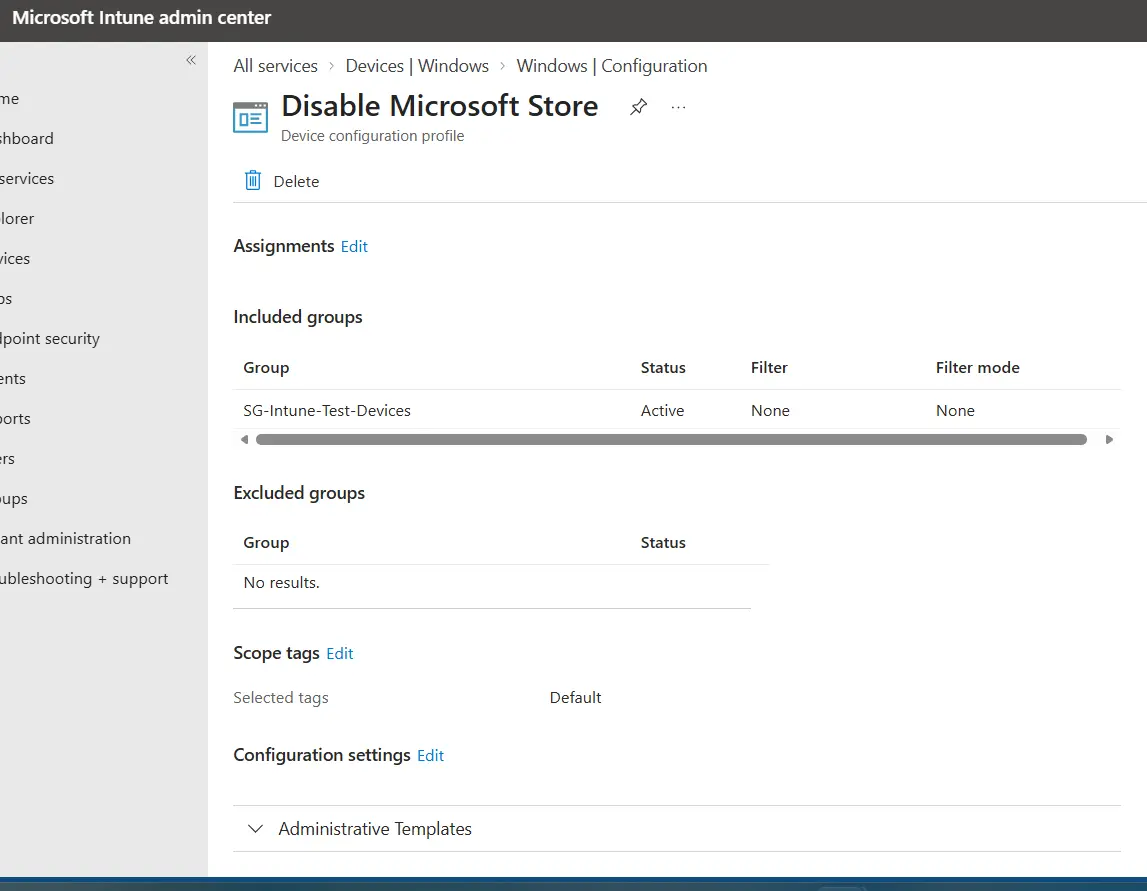
1. Initial Device Policy Configuration
Before deploying applications, establish a device policy to enforce Microsoft Store restrictions and prepare for application deployment.
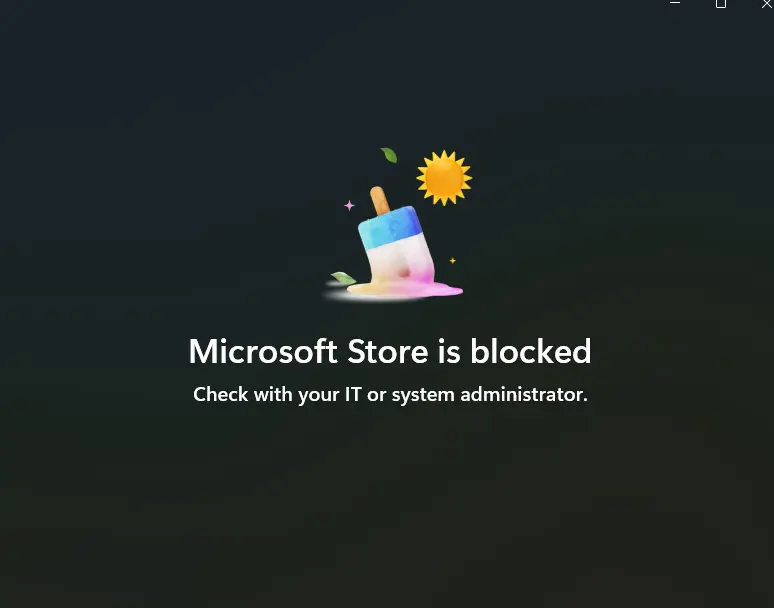
2. Client Testing and Verification
Test the policy application on client machines to ensure device compliance and policy propagation.
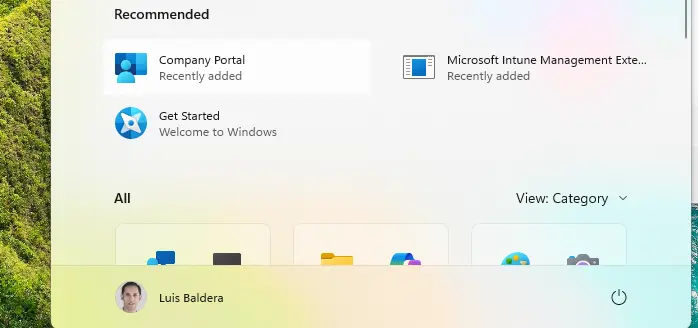
3. Company Portal as Software Deployment Platform
The Company Portal serves as the central hub for end-user access to managed applications. All deployed apps appear here for optional installation or mandatory enforcement.
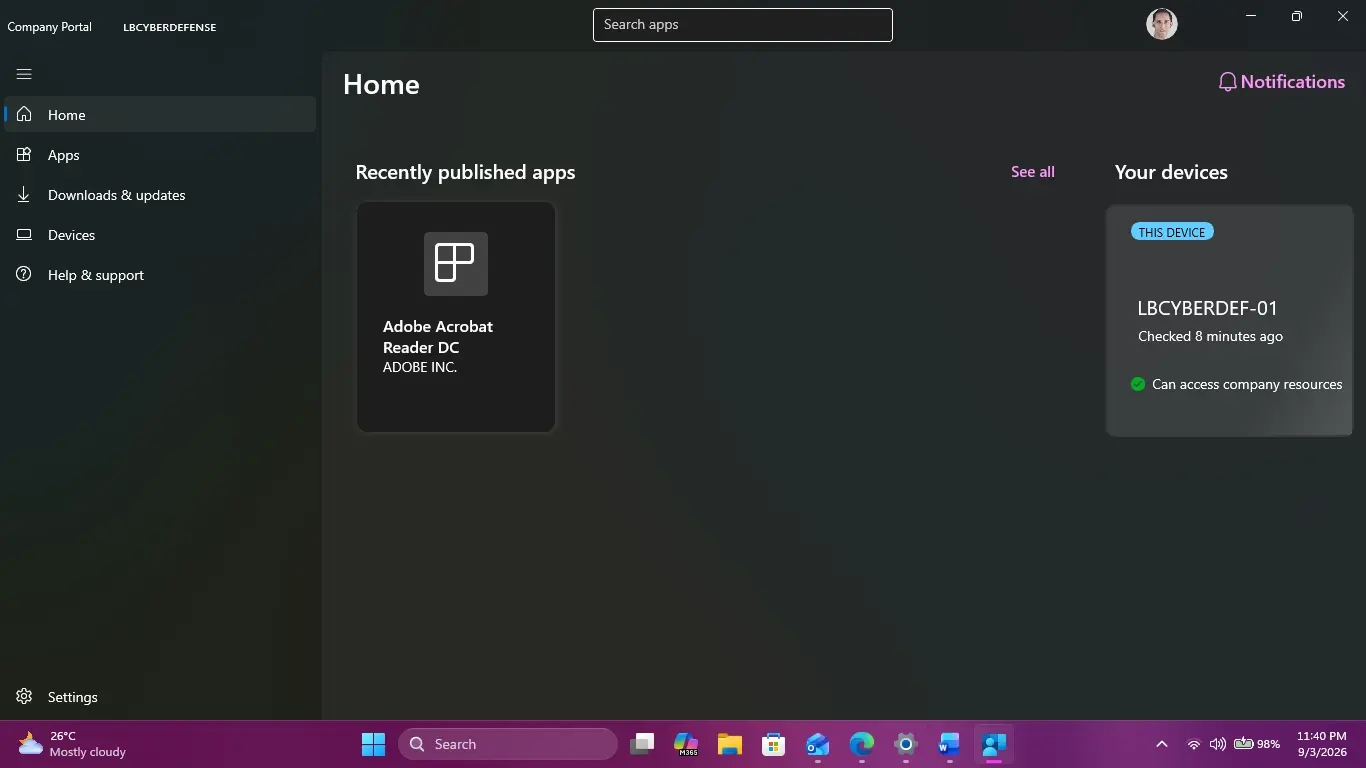
4. Testing Application Deployment
Deploy a test application (Adobe Reader) to verify the deployment pipeline and installation workflow.
5. Managing Windows Applications in Intune
Access the Windows App list within Intune to view, manage, and add new applications to your deployment catalog.
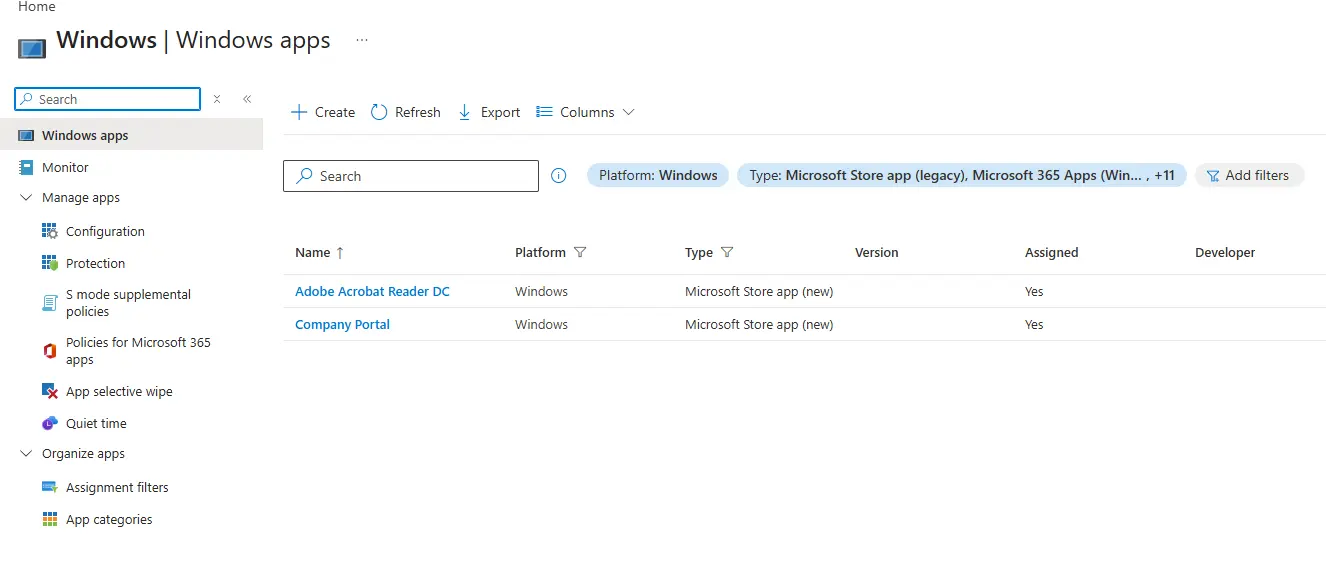
6. Adding New Applications to Deployment
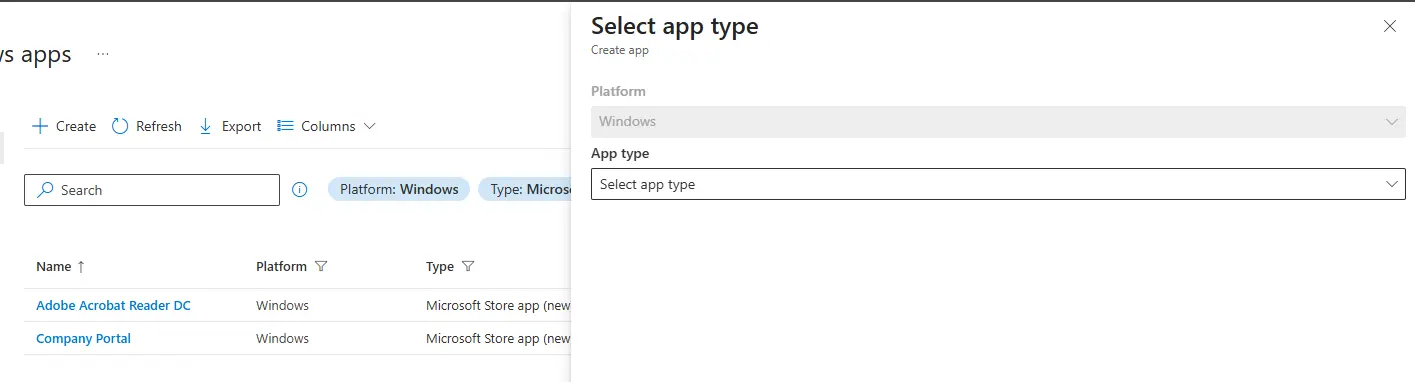
Step 1: Select Application Type
When adding applications, choose the appropriate application type (Store App, Web Link, Win32 App, etc.). For store-based applications, select "Store app" as the application type.
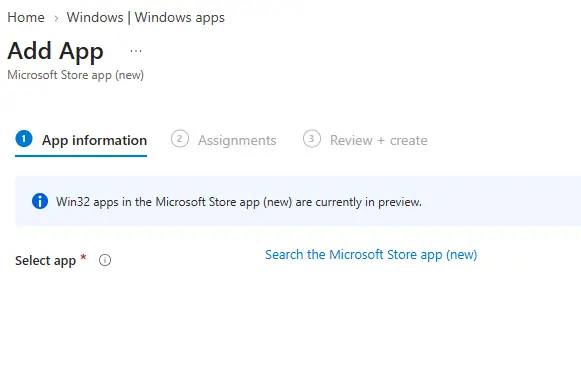
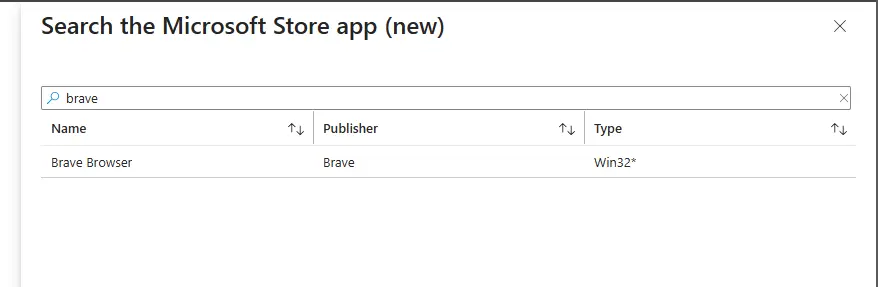
Step 2: Search and Select Store Application
Search the Microsoft Store catalog for the desired application. In this example, we're deploying Brave Browser.
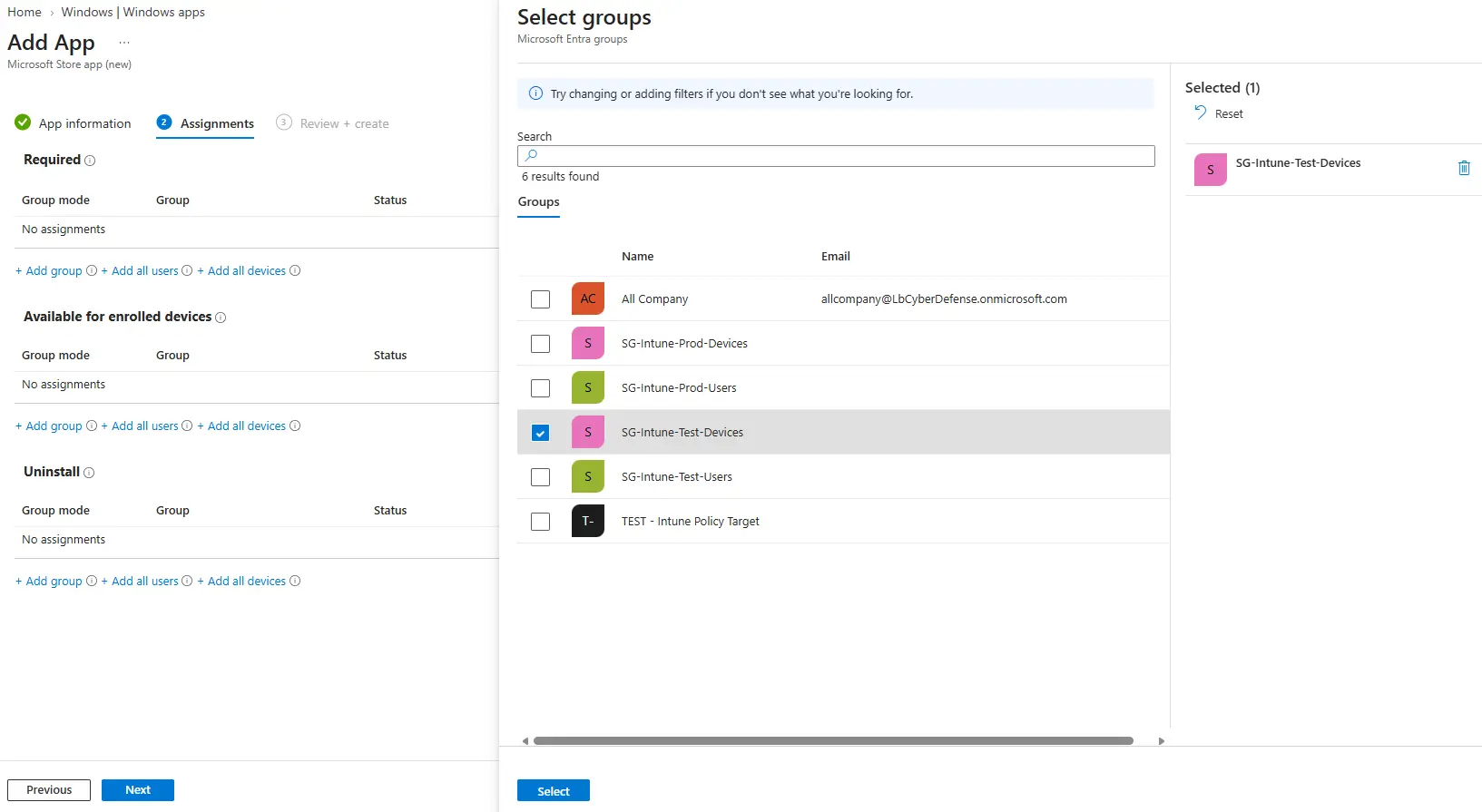
Step 3: Configure Deployment Group Assignment
Assign the application to security groups to control which users and devices receive the deployment. Create or select an existing security group for targeted deployment.
Step 4: Security Group Assignment
Specify security groups for application assignment. This ensures only members of the deployment group can access the application through Company Portal.
7. Application Logo Configuration
Upload a custom application logo to enhance the visual presentation of applications in the Company Portal. This improves user experience and brand consistency.
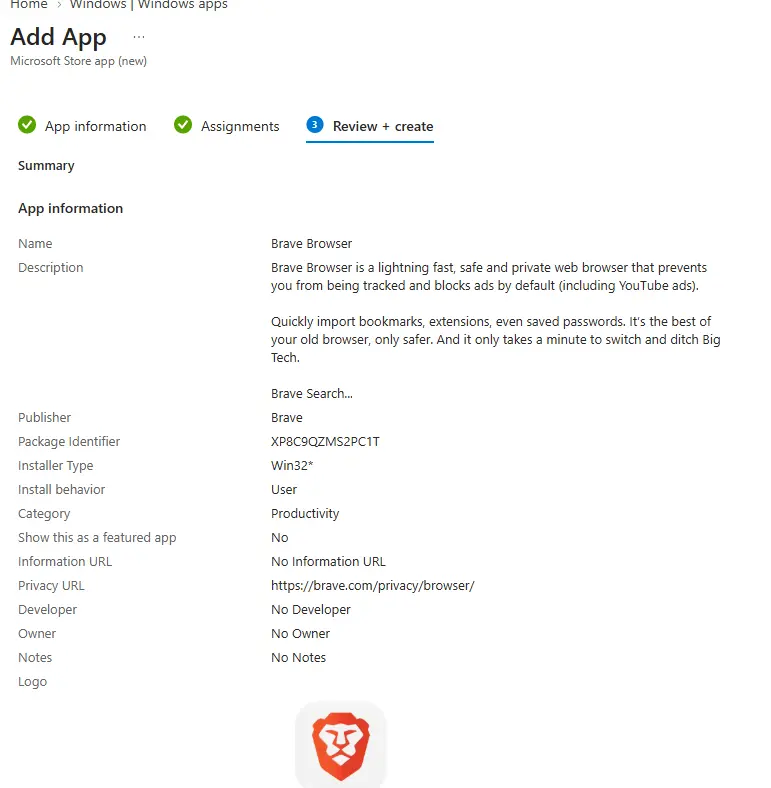
8. Verification and Deployment Status
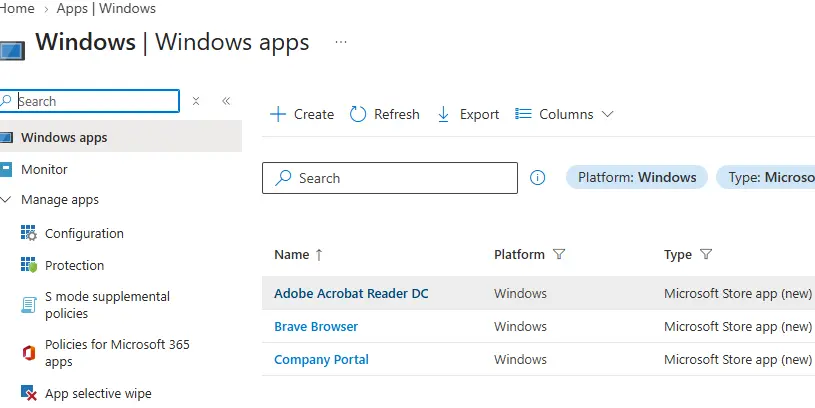
Application List Post-Upload
After uploading applications, verify they appear in your managed applications list with correct metadata.
Client-Side Application Availability
Verify that enrolled clients can see the deployed applications in their Company Portal instance.
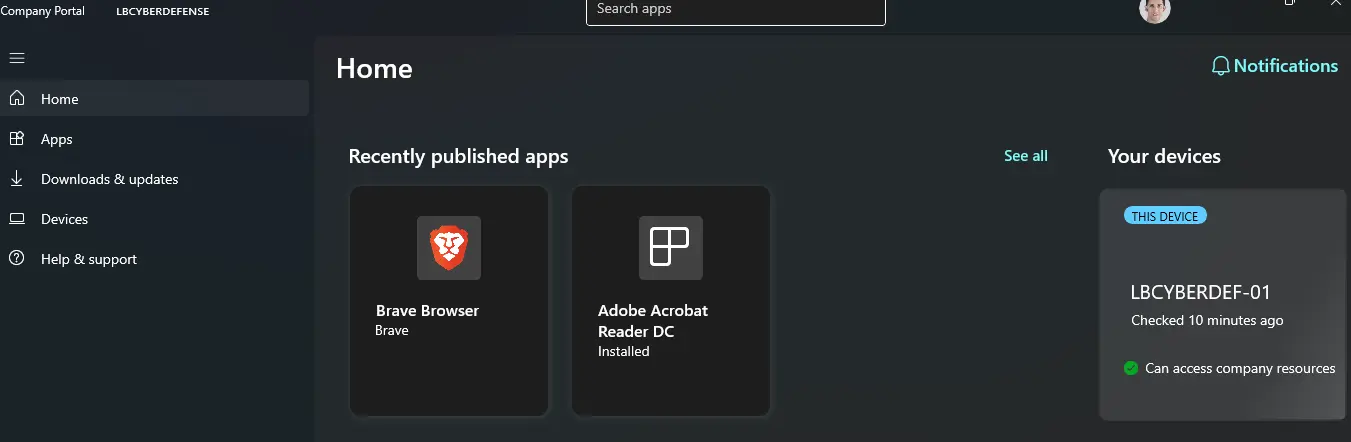
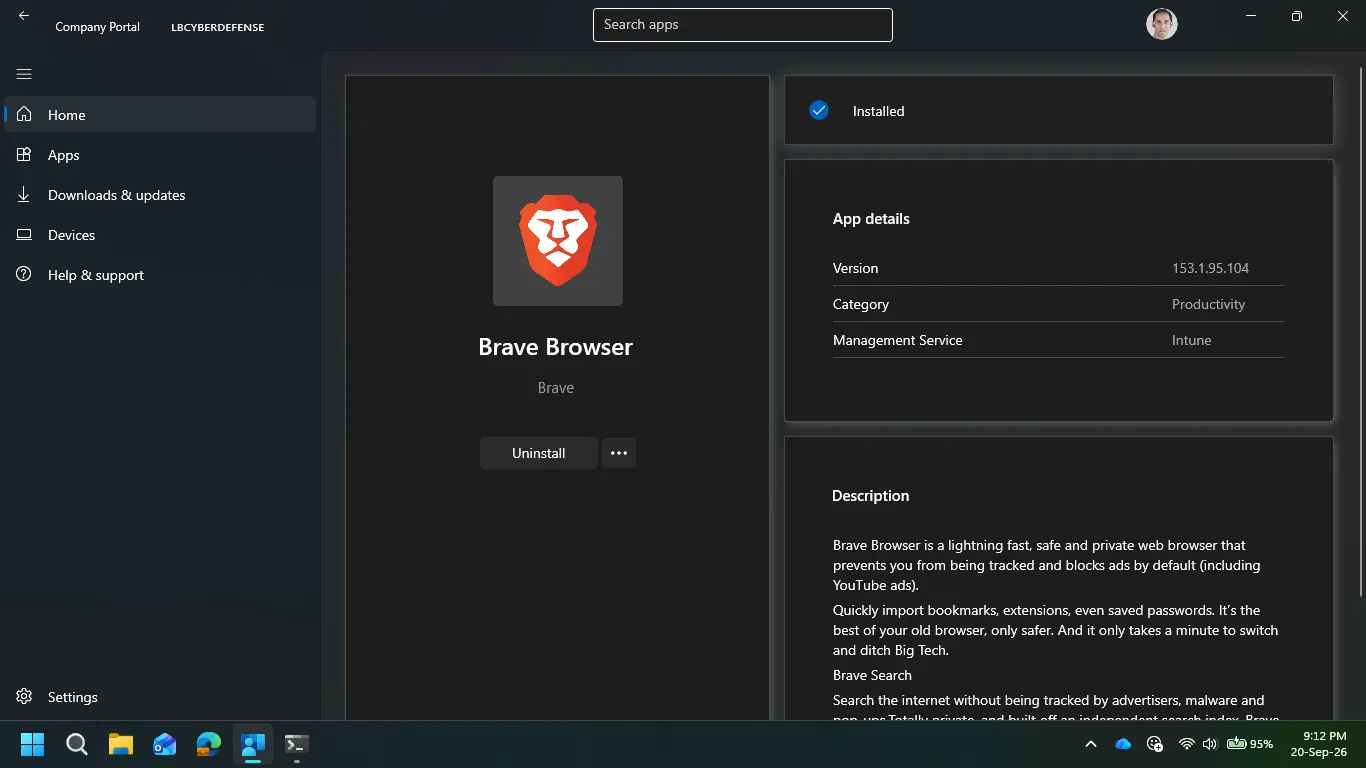
Application Ready for Installation
Applications display with full details, including custom logos and descriptions, ready for end-user installation.
Key Takeaways
- Policy First: Establish device policies before deploying applications to ensure compliance and security baselines
- Company Portal as Hub: Leverage Company Portal as the single point for users to discover and install managed applications
- Security Groups: Use Azure AD security groups for targeted deployment to control application distribution
- Branding Matters: Upload custom logos and descriptions to improve application discoverability and user engagement
- Test First: Deploy test applications to verify the pipeline before rolling out production applications
- Compliance Tracking: Monitor deployment status and device compliance through Intune dashboards